digiRap logo

digiRap · Linking systems

The radio stands at the station. It is operated in the control room.

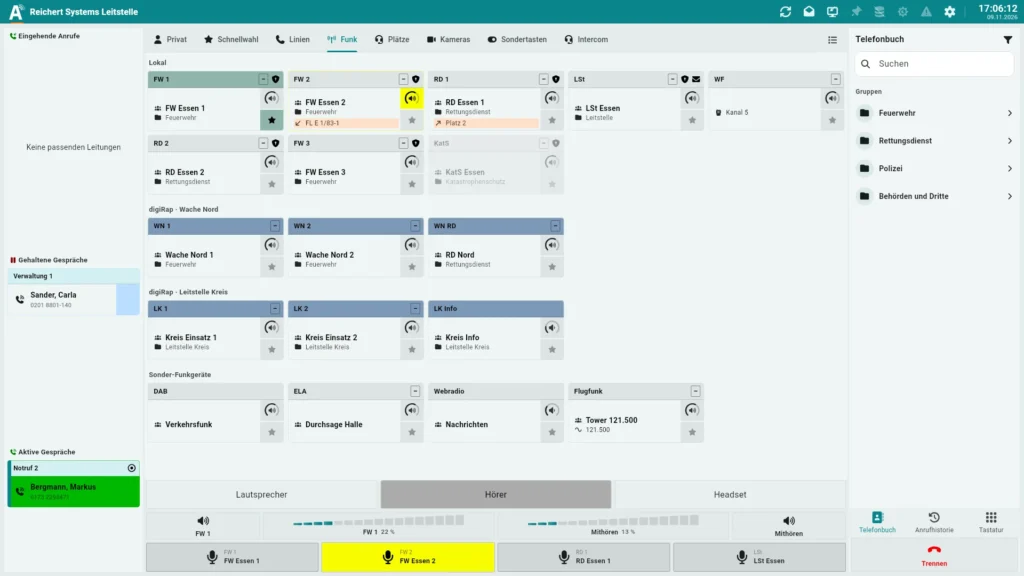
digiRap is our way of networking: it connects BOS-Compact and ZBE systems over IP, across sites and directly from system to system. Remote radios appear on UniKey desk units and in AfVis as perfectly normal tiles. You decide per radio line and remote system whether it may listen, talk or switch.

  • Listen · Talk · Switch
  • LAN · WAN
  • TETRA, DMR, analogue radio
BOS-CompactZBEUniKeyAfVisTETRADMRAnalogue radioControl roomStationCommand vehicleLANWANBOS-CompactZBEUniKeyAfVisTETRADMRAnalogue radioControl roomStationCommand vehicleLANWAN
01 / Why digiRap

Radio knows no site boundaries. From now on, neither does your system.

The classic remote control over a line brings a radio to a second place. digiRap is its digital successor: it brings the radio to every position you share it with, complete with tile, talk groups and rights.

System to systemDirectly over IP, on the local network or over remote networks. You need no cloud or central hub in between.
All radio types, one shareEvery radio line of your system can be shared, whether TETRA, DMR or analogue. Name and device type come along; which functions are available depends on the radio.
Operated like a local radioThe same tiles on UniKey and AfVis. Nobody has to learn anything new for remote radios.
Two keysThe system with the radio decides what it shares with which remote system and with which right. The system at the position decides which position gets the line.
Every system with every otherSeveral systems can be fully meshed: every connection is a pair of its own. If one system fails, the other pairs keep running.
Comes back by itselfIf the connection drops, digiRap logs on again by itself and aligns the state of the lines, in any start-up order.
02 / The principle

Three sites. One radio picture.

Control room, station and command vehicle keep their own system and their own radios. digiRap connects the systems directly, and every site also works with the radios the others share with it. A system can provide and use at the same time, only provide or only use. There is no central server in between.

Example network. The dot marks remote lines in this drawing only; at the position they look like all the others.
03 / Mesh

Every system with every other. And the whole network in view.

digiRap connects systems in pairs and directly. The result is a meshed network without a central server, in which every system has its own shares and rights with each of its remote systems.

Whole network

If one fails, the others keep working.

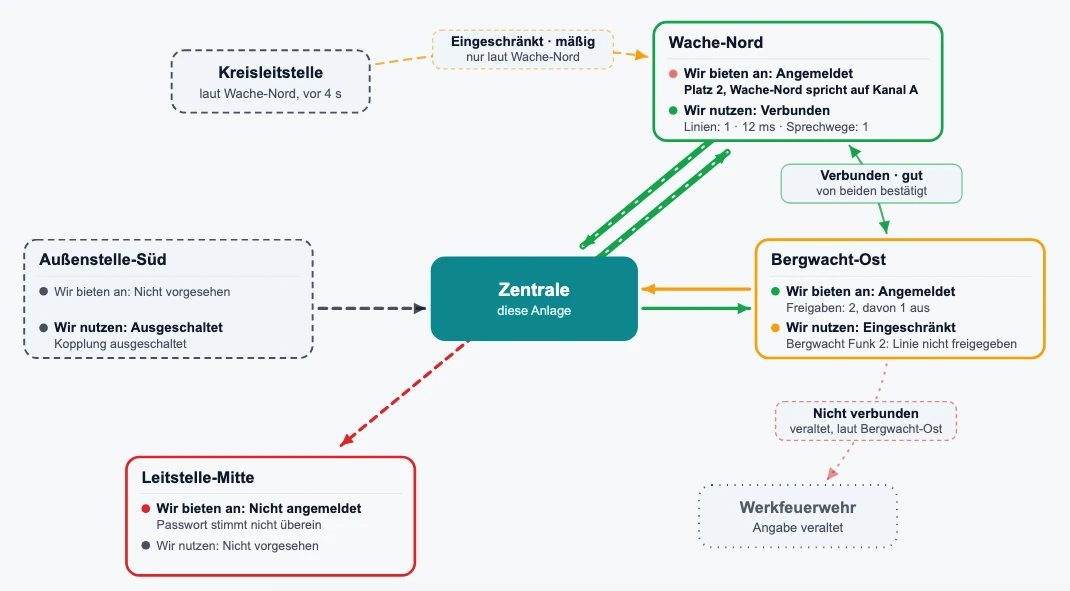
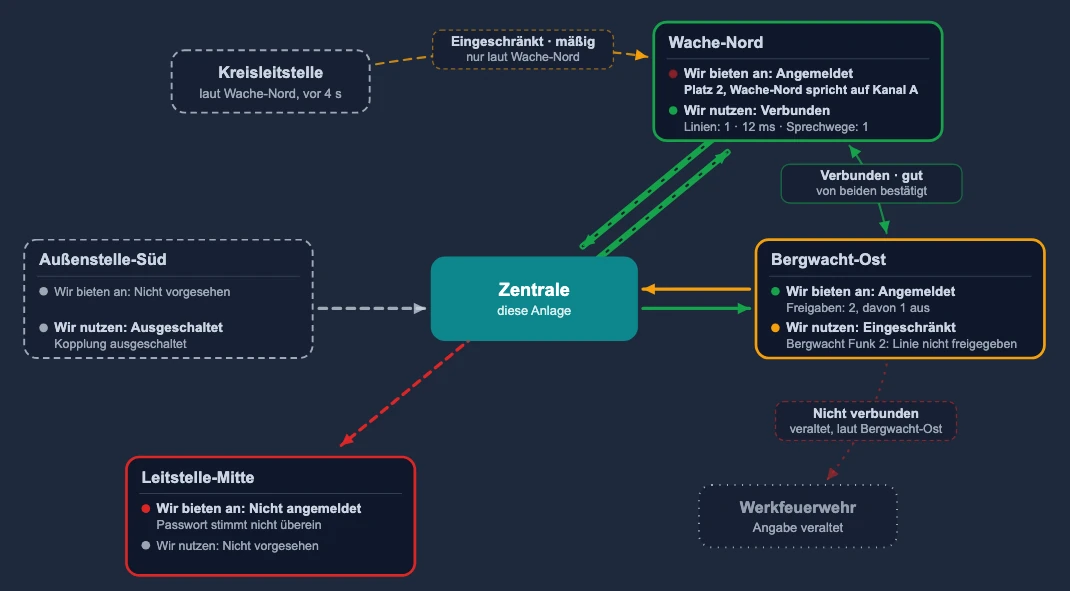
If one system fails, the others keep working; when it comes back, everything is re-established by itself. In the “Whole network” view you see on your own system which systems are coupled with each other and in which state.

  • One state per direction: connected, limited, fault, inactive
  • Open voice paths and who is talking right now
  • Only names and state are shared, no addresses, no audio
  • Display only, can be enabled per system; nothing is switched through it
Radio network in the web interface, “Whole network” view with sample data.Radio network in the web interface, “Whole network” view with sample data.
Radio network in the web interface, “Whole network” view with sample data.
04 / Remote like local

Look for the remote tile. You will not recognise it.

At the position

Same tile. Same moves.

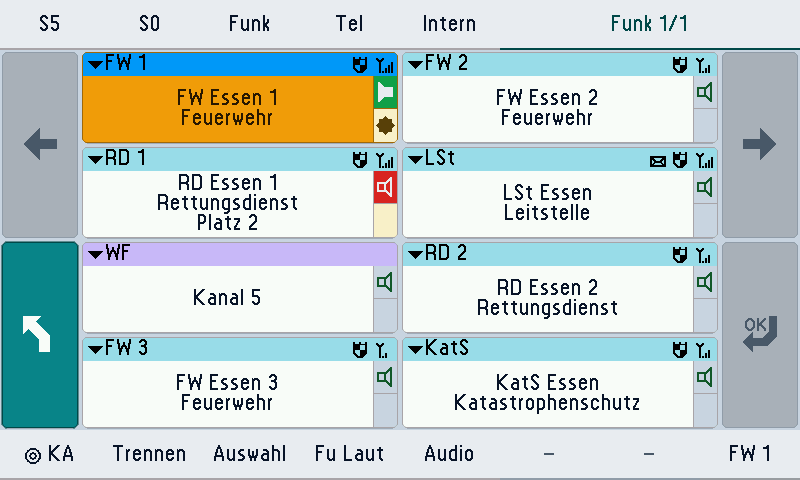
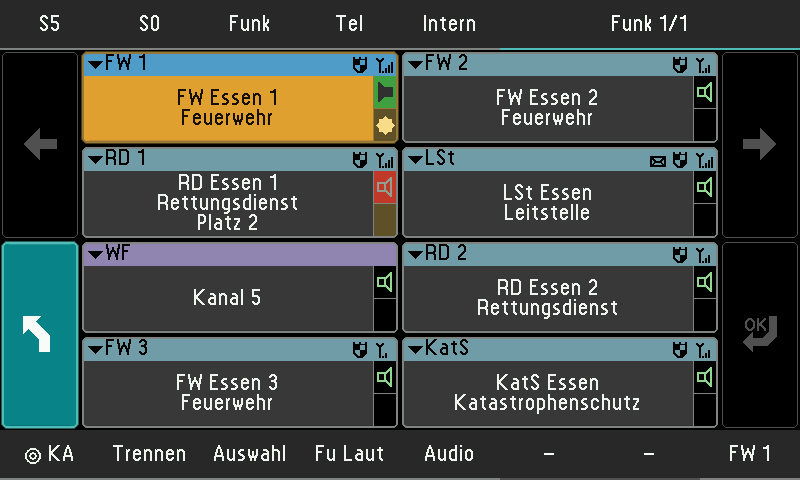
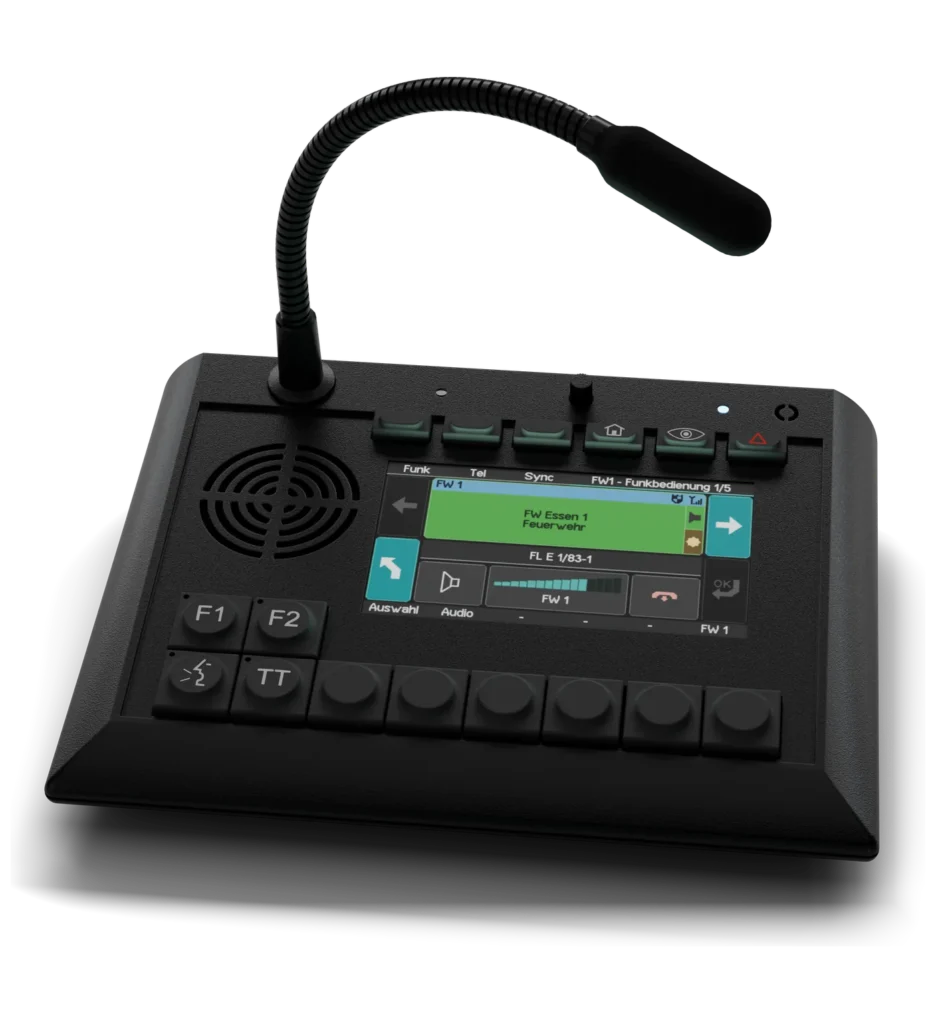
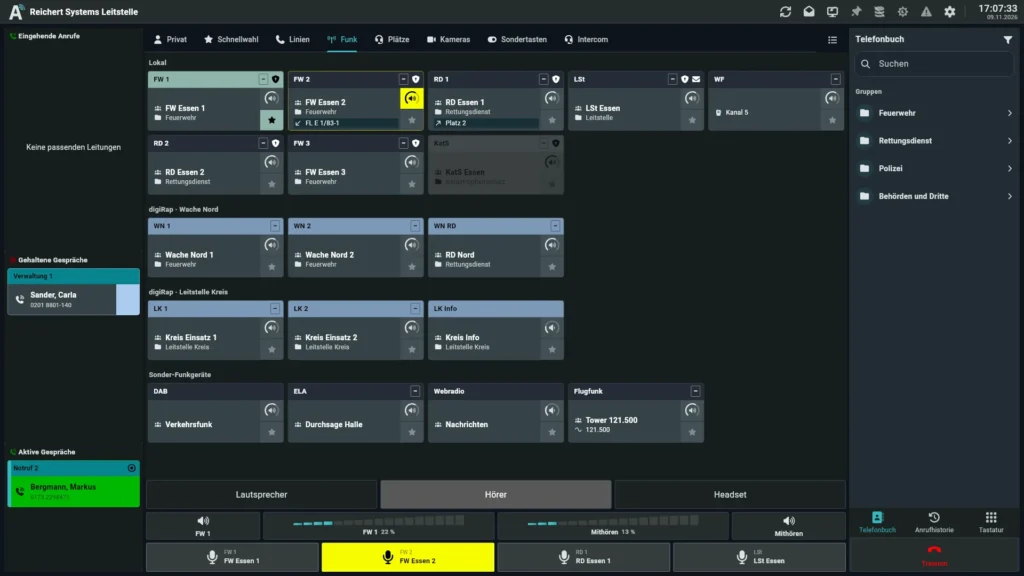
To your system, a remote radio line is a radio line like any other. It sits on the same radio page, carries the name you give it and is operated on UniKey and in AfVis just like the radio in your own rack.

  • Talk key, pick up and hang up
  • Change talk group or channel
  • Set up individual calls
  • Send and receive status and short messages
  • Incoming emergency calls come in
  • Signal strength and display texts of the radio
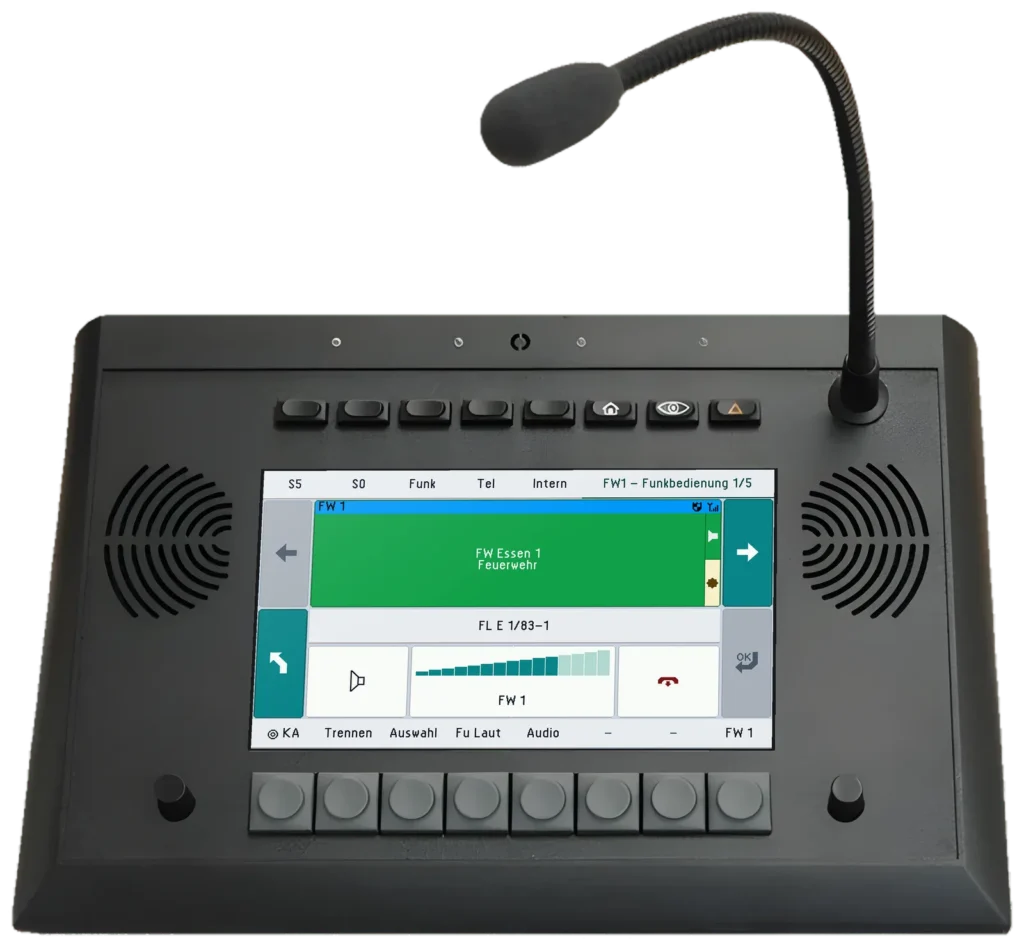
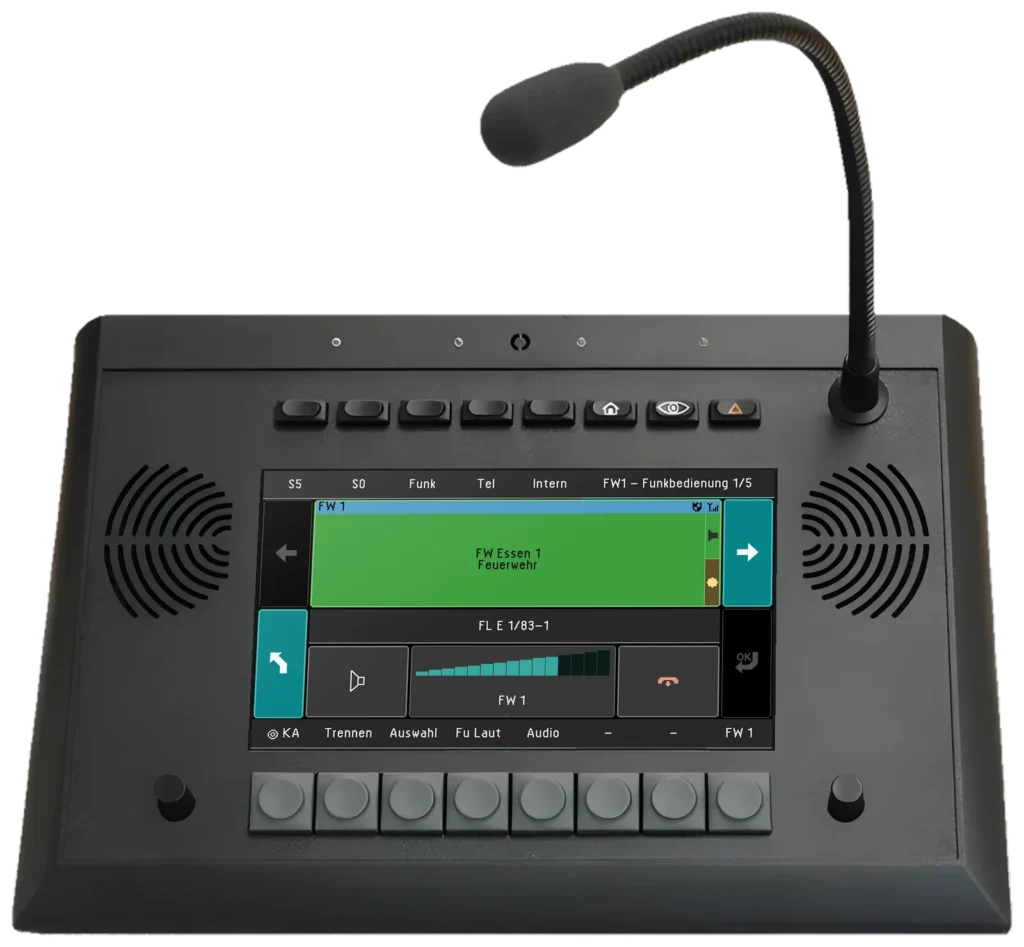
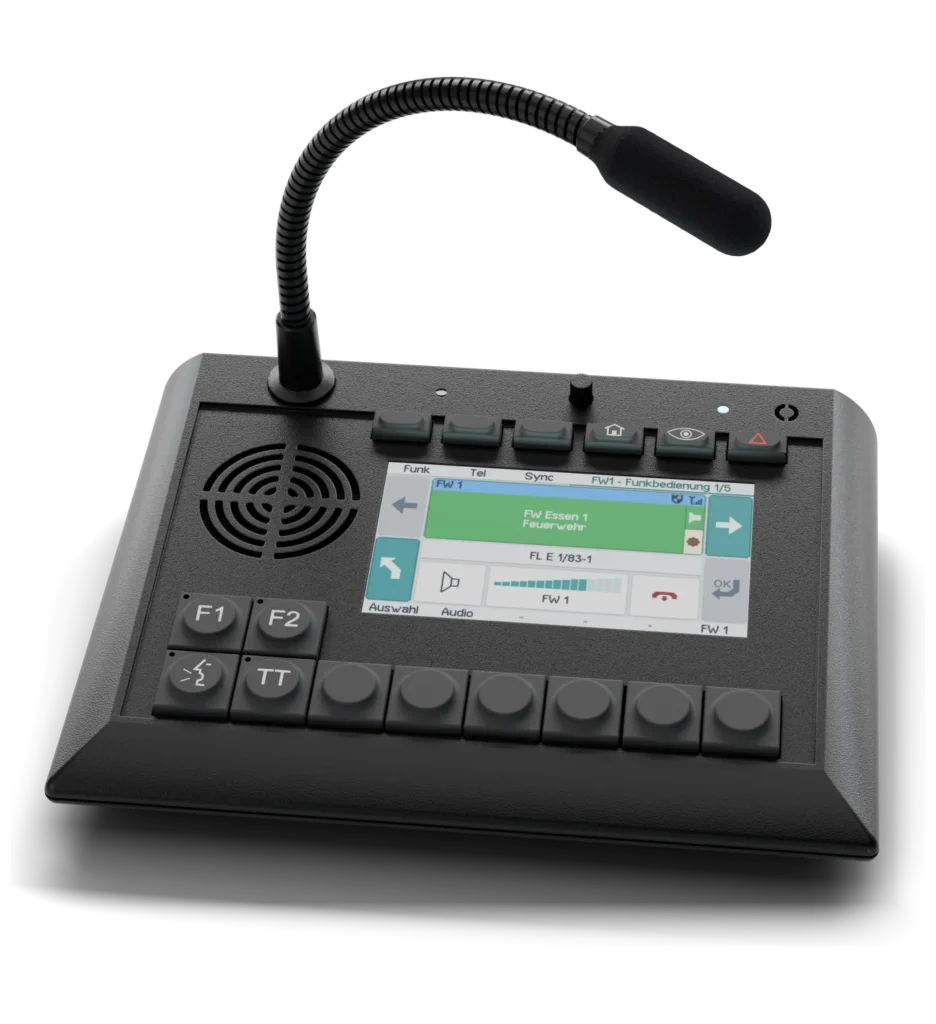
Radio page of a UniKey-TS3, example display: this is what a desk unit looks like, whether the radio is next door or at another site.Radio page of a UniKey-TS3, example display: this is what a desk unit looks like, whether the radio is next door or at another site.
Radio page of a UniKey-TS3, example display: this is what a desk unit looks like, whether the radio is next door or at another site.

Setting up

Enter once, adopt with a click.

Setup takes place in the web interface of the system. For each remote system you enter a few details, mirrored on the other system. What the remote system offers, you adopt as a radio line of your own with one click.

  • Role per remote system: provide and use, only provide or only use
  • “Fetch available lines” shows the current state at any time
  • Existing couplings set up the classic way keep running unchanged
From the share to the tile, schematic.
05 / Permissions

Listen. Talk. Switch. Per remote system and per position.

A shared radio is only a good idea if it is clear who may do what with it. digiRap settles this in two steps: the system with the radio sets per share what the remote system may do. The system at the position sets which position gets the line.

The levels

Whoever should only listen, only listens.

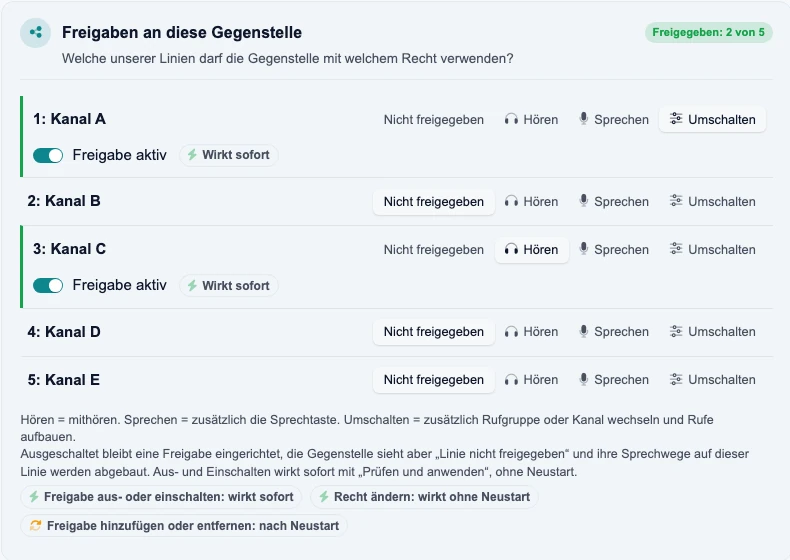
The right applies per radio line and per remote system. Listen means monitoring. Talk also opens the talk key. Switch also allows changing the talk group or channel, setting up calls and sending status and short messages. Without the right the operator sees a clear note such as “Listen only”.

  • A line can be shared with several remote systems, each with its own right
  • Changing a right or switching a share off and on works without a restart
  • Switching a share off ends running voice paths at once
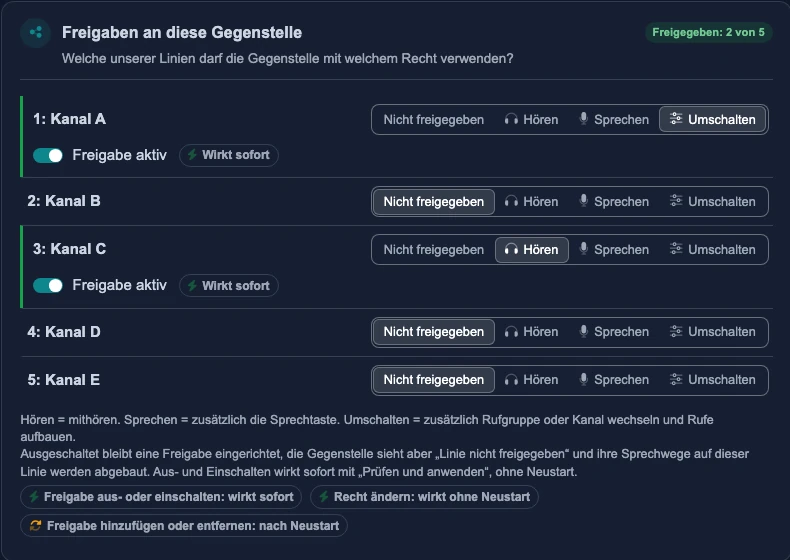
Shares for a remote system in the web interface, sample data.Shares for a remote system in the web interface, sample data.
Shares for a remote system in the web interface, sample data.

Radio control matrix

All positions, all lines, one view.

The radio control matrix shows positions in rows and radio lines in columns, own and remote ones. A click in a cell toggles a right: monitor, talk, configure. In live mode you assign or release lines during operation, without a restart and without rebuilding anything.

  • Positions with the same profile share their assignments
  • Set the order of lines per position
  • Changes as a draft first or immediately in live mode
Example: who may do what on own and remote radio lines?

Two keys

Nothing leaves the system unless you share it.

Every remote system logs on with its own access and a shared password and only sees the radio lines shared with it, with the right you give it. Which position gets the line is then set by the system at the position.

  • Own shares per remote system
  • Right per share: listen, talk or switch
  • Enforced by the system with the radio
Share and right on one system, assignment to the position on the other.
06 / At a glance

Networking without relearning.

Rights per share
3
Listen, talk, switch
roles in one system
2
Provide, use or both
way of operating
1
For local and remote radios
On LAN and WAN
IP
Directly from system to system
07 / In action

This is what it looks like when it matters.

Vehicle and control room

The command vehicle leaves. The control room goes along.

Once the IP connection is up, the command vehicle works with shared radios of the control room and the station as if they were its own. It also works the other way round and from vehicle to vehicle.

  • Couple command vehicles with the control room and with each other
  • Only the shared lines in the vehicle
  • Everything local stays usable on site, even without the coupling
Command vehicle with shared radios of the control room, schematic.

Control room and station

The station sleeps. Its radio does not.

At night or at the weekend the control room takes over the radios of the station. The devices stay where they are, and you assign the lines in the radio control matrix during operation. In the morning you release them again.

  • Cover without rebuilding and without a trip to the site
  • You choose the moment, nothing switches unasked
Cover between two sites, schematic.

Site network

Patched is patched. Everywhere.

When a control room patches talk groups, the coupled systems show it with members and origin. If a partner logs on later, it receives the current state. If it fails, its entries disappear by themselves. Patching is done on your own system.

  • Shown across all remote systems
  • No outdated entries after a failure
One patch, visible at both control rooms.
08 / Where it fits

Wherever radio is needed in more than one place.

Control room and station

The station sees the radio circuits of the control room, the control room those of the station if needed.

Vehicle and control room

The command vehicle uses radios it does not carry on board.

Vehicle and vehicle

Two command vehicles couple their systems and share their radio resources.

Cover

One site takes over the radios of another, for example at night or during holidays.

Backup at the partner

If one of your radios fails, shared radios of a partner system are ready. You assign them during live operation.

Site network

Several systems, fully meshed: each provides and uses what it needs.

09 / Reliable

If the network falters, the system knows.

A coupling across networks has to be honest: ready means ready. That is why digiRap monitors the connection constantly and only shows a line as ready when connection, share and radio are all ready.

Constantly monitoredThe remote systems check the connection constantly. For each remote system you see both directions, “We provide” and “We use”, with round-trip time and number of drops.
Back by itselfAfter a drop the system logs on again automatically, the remote system announces its lines again, and digiRap detects changes to group lists by itself.
Cause instead of a generic errorNot reachable, logon rejected, line not shared, radio not ready, all busy: every message names the cause and what to do.
No stuck transmissionIf the using system or the network fails while transmitting, the talk key on the line is released at once.
Traceable and monitorableCall events and messages of the remote line end up in the history of your own system. Status and errors of the coupling can be included in your network monitoring.
Local work goes onYour own radios do not depend on the coupling. If the network fails, they keep working on your own system.
10 / Technology

The essentials at a glance.

Connection
Over IP on the local network (LAN) or over remote networks (WAN), directly from system to system, without a central server
Mesh
Each system with each; several remote systems per system, overview designed for up to 12 remote systems
Roles
Per remote system: provide and use, only provide or only use
Operating mode
digiRap or according to the Digitalfunkstecker standard
Logon
Own access with password per remote system
Share
Per remote system a list of radio lines with the right listen, talk or switch; shares can be fetched with name and device type
Position rights
Radio control matrix: monitor, talk, configure; plus receive messages and message pop-ups
Functions over the coupling
Talk, change talk group or channel, individual call, send and receive status and short messages; receive emergency calls
Network view
“Whole network”: systems report name and state of their couplings to their remote systems; display only, can be enabled per system
Connection monitoring
Constant check with round-trip time and drops, automatic re-logon, messages with cause
Changes during operation
Change rights and switch shares off and on without a restart
Network
Coupling within a protected network or over VPN; encryption of its own is in preparation
Operator positions
UniKey desk units and AfVis
Requirements
Software on every REICHERT system from the BOS-Compact upwards, IP connection between the systems
12 / Example configurations

digiRap is already planned in here.

Example network of three stations

A main station and two further stations in one city, each with its own REICHERT system, linked over IP with digiRap: radios are shared, stations stand in for each other on the radio.

View configuration

Example ELW3 from two ELW2

Two ELW2 parked side by side form one command post: via digiRap, each vehicle’s radios are available at the positions of both vehicles.

View configuration

Example ELW2

Command vehicle with 19-inch racks and BOS-Compact Dual, four software workstations, a UniKey workstation in the meeting room and a public address (ELA) connection.

View configuration
13 / Frequently asked questions

What customers ask us about digiRap.

What is digiRap?
digiRap is the network for REICHERT systems. It connects BOS-Compact and ZBE systems over IP, so that the radios of one system can be operated at the positions of another, just like local radios. digiRap carries radio only: telephony, EMMA and other data are not part of it.
How does digiRap differ from the Digitalfunkstecker?
digiRap builds on the Digitalfunkstecker standard and extends it: systems provide radio lines to each other with rights, report their names and device types and show the patches of their partners. Operation according to the standard remains possible.
Which systems can be coupled?
Every existing REICHERT system from the BOS-Compact upwards, in the control room, at the station and in the vehicle. digiRap is software on the system; no additional hardware is needed.
What does “meshed” mean with digiRap?
Every system is connected directly to each of its remote systems. If one fails, the others keep working, and when it returns everything is re-established by itself. The “Whole network” view lets every system also see the couplings of the others. There is no forwarding through a third system: every pair needs its own direct network connection.
Which radios can I share?
In principle every radio line of your system, whether TETRA, DMR or analogue. Which functions are available in detail depends on the radio at the remote system. What can be connected to your system is shown on the radio connection page.
Do my operators have to relearn?
No. Remote radios appear on UniKey desk units and in AfVis as normal radio lines with the same tiles. Operation does not change.
What can I do with a remote radio?
Depending on the right shared: monitor, talk, change talk group or channel, set up individual calls, send and receive status and short messages. Incoming emergency calls come in. Triggering an emergency call or an alert and patching groups over the coupling are not part of the scope; we are happy to clarify this for your system.
How do I assign permissions?
In two places: the system with the radio shares radio lines per remote system, each with the right listen, talk or switch, and enforces it on every command. The system at the position sets in the radio control matrix which position gets the line.
What happens if the connection drops?
The affected lines are no longer ready, and this is visible at the position, with the cause. A running transmission is ended at once. The system logs on again automatically and aligns the state. Your own radios keep working on your own system in the meantime.
Does digiRap switch over automatically in case of failure?
No, automatic takeover by another site is not part of digiRap. You keep shared radios ready as a backup and assign lines in the radio control matrix during live operation. So you decide when a site takes over.
What happens if two sites want to talk at the same time?
The number of voice paths per remote system is limited. If all are busy, the position says so clearly instead of staying silent.
Do I need internet or a cloud?
No. digiRap connects the systems directly over your IP network, on the LAN or over remote networks. No service runs at our end or in a cloud in between.
How is the coupling secured?
Every remote system logs on with its own access and password and only sees what is shared with it, with the right you assign. The coupling belongs in your protected network and, across third-party networks, in a VPN tunnel. Encryption of its own is in preparation.
Can a system be coupled with several sites?
Yes. A system can have several remote systems and provide, use or both per remote system. A line can be shared with several remote systems at once, each with its own right.
How much effort is the setup?
For each remote system you enter a few details in the web interface and share lines with a right, mirrored on the other system. You adopt offered lines with one click. Changing rights and switching shares off or on works later without a restart. We are happy to set up the coupling for you.
14 / Contact

See networking live in a demonstration.

We show you digiRap on real systems in our showroom in Essen or discuss with you how coupling your sites can look.

Showroom
Gärtnerstraße 44
45128 Essen, Germany
Opening hours
Mon–Fri · by appointment

Request a demonstration.

Call Arrange a demonstration